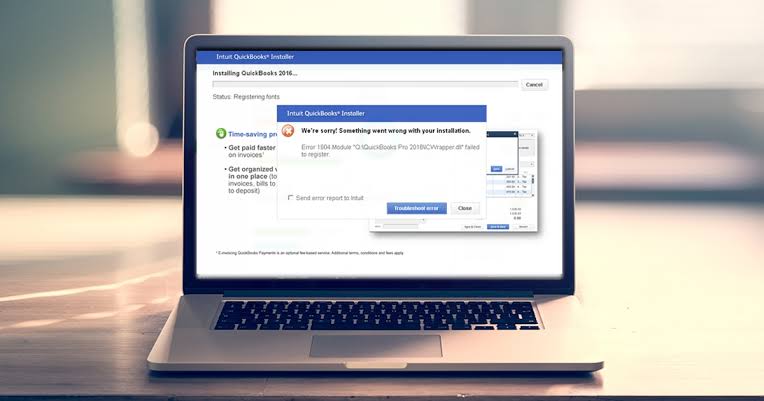
QuickBooks updates are important because they can provide new features, security improvements, and fixes for known problems. However, sometimes QuickBooks Desktop may fail to download or install an update. You may see an error message, an update that gets stuck, or a message saying that the update could not be completed.
QuickBooks update problems can be caused by an incorrect computer date and time, internet connection issues, firewall settings, damaged program files, or problems with the QuickBooks installation. Intuit recommends several troubleshooting methods for these issues.
Why Is QuickBooks Not Updating?
Several problems can prevent QuickBooks from completing an update. Common causes include:
Unstable internet connection.
Incorrect date or time on the computer.
Firewall or security software blocking QuickBooks.
Damaged QuickBooks installation files.
Multiple installations of the same QuickBooks version.
An incomplete previous update.
Windows-related problems.
QuickBooks background processes not working correctly.
The exact solution can depend on the error code displayed on your screen.
Check Your Internet Connection
QuickBooks needs a working internet connection to download updates.
Open a web browser and visit a few websites to make sure your internet is working properly. If websites do not load, fix the internet connection before trying to update QuickBooks again.
If your internet works normally but QuickBooks still cannot update, check its internet connection settings.
In QuickBooks Desktop, open the Help menu and select Internet Connection Setup. Choose the option to use your computer’s internet connection settings and restore the advanced connection settings if necessary. Then try the update again.
Check Your Computer’s Date and Time
An incorrect system date or time can interfere with QuickBooks updates.
Check the date and time displayed by Windows. Make sure they are correct.
After correcting them, close QuickBooks and open it again. Then try downloading the update.
Intuit specifically recommends checking the system date and time for certain QuickBooks update errors, including several errors in the 12000 range.
Run Quick Fix My Program
QuickBooks Tool Hub includes Quick Fix my Program, which closes QuickBooks background processes and performs a quick repair.
To use it:
Close QuickBooks Desktop.
Open QuickBooks Tool Hub.
Select Program Problems.
Choose Quick Fix my Program.
Wait for the tool to finish.
Open QuickBooks and try the update again.
The Tool Hub is designed to help resolve common QuickBooks Desktop problems, including program and installation issues.
Check Firewall and Security Settings
Your firewall or antivirus program may prevent QuickBooks from connecting to the internet.
Check your firewall settings and make sure QuickBooks is allowed to communicate through the network.
Some QuickBooks update errors can occur when firewall or internet security settings block the program’s required connections. Intuit recommends checking these settings when troubleshooting update problems.
Do not permanently disable your firewall just to install an update. Instead, configure the appropriate permissions for QuickBooks.
Use the QuickBooks Install Diagnostic Tool
If the update still fails, the QuickBooks installation itself may have a problem.
Open QuickBooks Tool Hub and select Installation Issues.
Choose QuickBooks Install Diagnostic Tool and allow it to complete its check.
The tool can diagnose and fix certain problems involving components that QuickBooks uses. After it finishes, restart your computer and try updating QuickBooks again.
Update Windows
Windows updates can sometimes resolve problems that interfere with QuickBooks installation or updating.
Open Windows Update and check for available updates.
Install the appropriate updates and restart your computer.
After Windows restarts, open QuickBooks and try the update again.
Try a Manual QuickBooks Update
If the normal update process continues to fail, a manual update may be an option.
This can be particularly useful when multiple installations of the same QuickBooks version are present on one computer. Intuit notes that multiple installations of the same version year can contribute to update errors and recommends using a manual update in such cases.
Make sure you choose the update appropriate for your QuickBooks Desktop version.
Repair QuickBooks
If QuickBooks files are damaged, repairing the program may resolve the update problem.
QuickBooks Tool Hub provides tools for program and installation problems. Run Quick Fix my Program first. If that does not work, use the QuickBooks Install Diagnostic Tool.
Restart your computer after the repair and try the update again.
Restart the Computer
A simple restart can sometimes clear temporary QuickBooks processes that are preventing an update.
Close QuickBooks and other running programs.
Restart Windows and wait for the computer to finish loading.
Open QuickBooks again and check for updates.
What If QuickBooks Still Won‘t Update?
If QuickBooks continues to display an update error, note the exact error number or message.
Specific errors can have different causes and solutions. Intuit recommends searching for the exact error code when a specific code is displayed rather than using only general update troubleshooting.
Also make sure you have a recent backup of your QuickBooks company files before making significant changes to the installation.
How to Prevent QuickBooks Update Errors
You can reduce future update problems by following a few simple practices:
Keep Windows updated.
Maintain a stable internet connection.
Keep your computer’s date and time correct.
Allow QuickBooks through your firewall.
Avoid installing multiple copies of the same QuickBooks version unnecessarily.
Keep QuickBooks Desktop updated regularly.
Maintain backups of important company files.
Use QuickBooks Tool Hub when common program problems occur.
FAQs
Why is my QuickBooks update failing?
QuickBooks updates can fail because of internet problems, incorrect system time, firewall restrictions, damaged program files, or installation issues.
Can QuickBooks Tool Hub fix update errors?
Yes. QuickBooks Tool Hub includes tools such as Quick Fix my Program and the QuickBooks Install Diagnostic Tool that can help with program and installation problems.
Can my firewall block QuickBooks updates?
Yes. Firewall and security settings can interfere with QuickBooks’ internet connection and prevent updates from downloading or installing.
Should I update Windows if QuickBooks will not update?
Yes. Installing available Windows updates and restarting the computer can help resolve certain installation and compatibility problems.
What should I do if QuickBooks still will not update?
Check the exact error code, verify your internet and firewall settings, run QuickBooks Tool Hub, repair the installation, and try a manual update if appropriate. If the problem continues, additional QuickBooks troubleshooting may be needed.
Conclusion
QuickBooks update errors can prevent you from installing important fixes and improvements, but many update problems can be resolved with basic troubleshooting.
Start by checking your internet connection and computer date and time. Then check firewall settings, run Quick Fix my Program, and use the QuickBooks Install Diagnostic Tool if needed. Updating Windows or using a manual QuickBooks update can also help in certain situations.
