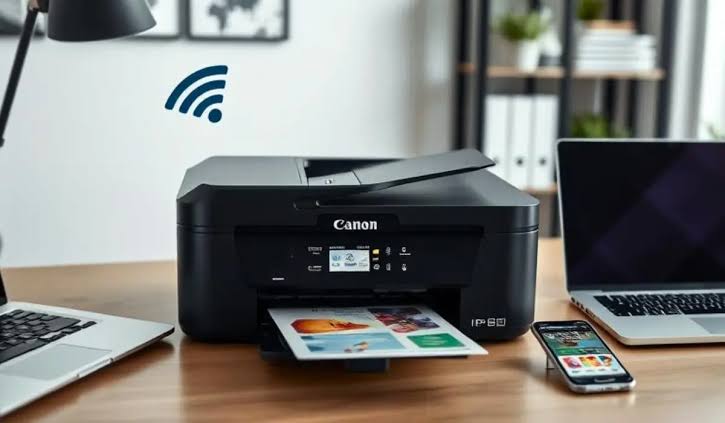
Is your Canon printer not responding when you try to print a document? You may notice that print jobs remain stuck, your computer cannot find the printer, or the printer appears offline.
This problem can happen because of a connection issue, incorrect printer settings, a stuck print queue, or an outdated driver. Fortunately, you can try a few simple troubleshooting methods to get your Canon printer working again.
Check Your Canon Printer
- Start by checking whether your Canon printer is turned on and ready to print.
- Look at the printer display for error messages. Check for paper jams, empty ink cartridges, open covers, or other warnings that may prevent printing.
- If the printer shows an error, resolve it before trying to print again.
Restart Your Printer and Computer
A temporary communication problem can cause your Canon printer to stop responding.
- Turn off your Canon printer.
- Disconnect the power cable if the manufacturer’s instructions allow it.
- Restart your computer.
- Reconnect the printer and turn it on.
- Wait until the printer is ready.
- Try printing a test page to see whether the problem has been resolved.
Check the Printer Connection
- A loose cable or unstable Wi-Fi connection can prevent your computer from communicating with the printer.
- For a USB printer: Make sure the cable is securely connected to the printer and computer. Try another USB port if necessary.
- For a wireless printer: Check that the printer and computer are connected to the correct network. If you recently changed your Wi-Fi password or router, reconnect the printer to the new network.
Check If Your Canon Printer Is Offline
Your computer may show the printer as offline even when it is turned on.
On Windows, follow these steps:
- Open Settings.
- Select Bluetooth & devices.
- Click Printers & scanners.
- Select your Canon printer and open the print queue.
- Check whether printing is paused or an offline option is enabled.
- Turn off offline mode if available, then try printing again.
Clear the Print Queue
- A stuck document can prevent other print jobs from reaching your Canon printer.
- Open the printer’s queue and cancel any pending documents. If the jobs do not clear, restart the Windows Print Spooler service.
- Press Windows + R, type services.msc, and press Enter. Find Print Spooler, right-click it, and select Restart.
- After the service restarts, send a new print job.
Set Your Canon Printer as the Default Printer
- If your computer has multiple printers installed, it may send documents to the wrong device.
- Open Settings > Bluetooth & devices > Printers & scanners. Select your Canon printer and choose the option to set it as the default printer, if available.
- When printing a document, make sure your Canon printer is selected in the print window.
Update the Canon Printer Driver
An outdated or damaged driver can prevent your computer from communicating correctly with your printer.
- Visit the official Canon website.
- Search for your exact printer model.
- Select your computer’s operating system.
- Download the compatible driver.
- Follow the installation instructions.
- Restart your computer after installing the driver and check whether the printer responds.
Avoid downloading drivers from unknown websites or installing software intended for a different printer model.
Remove and Add Your Canon Printer Again
If your Canon printer still does not respond, removing and adding it again may refresh the connection.
- Open Settings.
- Select Bluetooth & devices.
- Click Printers & scanners.
- Select your Canon printer and choose Remove.
- Restart your computer.
- Select Add device and follow the setup instructions.
For a wireless printer, make sure it is connected to Wi-Fi before adding it again.
Run the Windows Printer Troubleshooter
- Windows troubleshooting tools can identify some common printing problems.
- Open Settings > System > Troubleshoot > Other troubleshooters. If a printer troubleshooter is available, run it and follow the instructions.
- The available options may vary depending on your Windows version. After troubleshooting, print a test page to check whether the issue is fixed.
FAQs
Why is my Canon printer not responding even though it is turned on?
The printer may have a connection problem, stuck print jobs, an offline setting, or a damaged driver. Check the connection and printer status first.
Why does my Canon printer keep disconnecting?
A weak Wi-Fi signal, router problem, loose USB cable, or incorrect network settings can interrupt communication. Check the connection and restart the devices.
Can an outdated driver cause a Canon printer to stop responding?
Yes. An outdated or incompatible driver can prevent your computer from communicating correctly with the printer. Installing the correct driver may resolve the problem.
Should I reinstall my Canon printer?
If restarting the devices, checking the connection, and clearing the print queue do not work, removing and adding the printer again may help.
Conclusion
A Canon printer that is not responding can often be fixed by checking the connection, restarting the devices, clearing stuck print jobs, or turning off offline mode. If the problem continues, update the printer driver or remove and add the printer again.
Once your Canon printer responds normally, print a test page to confirm that the connection and settings are working correctly.
