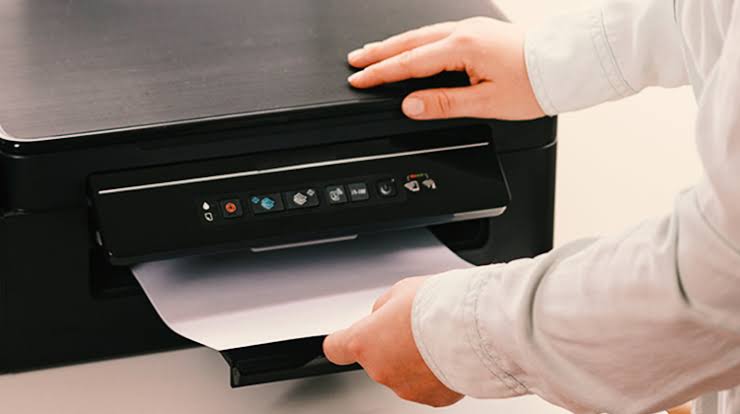
When your Epson printer prints blank pages, it can be frustrating, especially when you need an important document. The printer may feed paper normally, but the pages come out empty or contain only a few faint lines.
This problem can happen because of low ink levels, clogged printhead nozzles, incorrect print settings, improperly installed ink cartridges, or outdated printer drivers. In some cases, the issue may be related to the printer’s ink delivery system.
Before assuming that your Epson printer needs repair, try the troubleshooting steps below to identify and resolve the problem.
Check the Ink Levels
Low or empty ink cartridges are one of the common reasons an Epson printer produces blank pages. Even if the printer is turned on and accepts print jobs, it may not have enough ink to print the document.
Open the printer’s control panel or Epson printer software and check the ink levels. If a cartridge is empty or very low, replace it with a compatible cartridge.
For Epson EcoTank printers, check the ink tanks and make sure they contain enough ink. Avoid printing repeatedly when the ink supply is too low, as this may affect printhead operation.
After checking the ink levels, try printing a test page.
Check the Ink Cartridges or Ink Tanks
If your Epson printer has sufficient ink but still prints blank pages, check whether the ink cartridges are installed correctly.
Turn off the printer if the model’s instructions require it before accessing the cartridges. Check that each cartridge is seated properly and that any protective tape has been removed from a newly installed cartridge.
For EcoTank models, make sure the correct ink has been added to the appropriate tanks and that the printer has completed its initial ink charging process when required.
Follow the instructions for your specific Epson model. Incorrect handling of cartridges or ink tanks can cause additional problems.
Run a Printhead Nozzle Check
A clogged printhead can prevent ink from reaching the paper. This may happen when the printer has not been used for a long time or when ink dries inside the nozzles.
Most Epson printers provide a nozzle-check option through the control panel or printer software.
Print a nozzle-check pattern and examine the result. If lines or colors are missing, the printhead may need cleaning.
Follow the printer’s maintenance instructions to run the cleaning process. Print another nozzle-check pattern afterward to see whether the result has improved.
Clean the Epson Printhead
If the nozzle check shows missing lines or colors, use the built-in printhead cleaning utility.
Open the Epson printer software on your computer or access the maintenance menu on the printer, depending on your model. Select the printhead cleaning option and follow the instructions.
After cleaning, run another nozzle check. You may need to repeat the process if the pattern is still incomplete, but avoid running cleaning cycles repeatedly without checking the results. Printhead cleaning consumes ink.
If normal cleaning does not work, consult the user manual for further maintenance instructions.
Check the Print Settings
Incorrect print settings can sometimes make a document appear blank or cause the wrong content to print.
Open the document and select the correct Epson printer before sending the print job. Check that the right paper size and document settings are selected.
If you are printing a PDF or a document from a particular application, try printing a different file. You can also print a test page directly from the printer settings.
If the test page prints correctly but one document remains blank, the problem may be related to the file, application, or print settings rather than the printer itself.
Restart the Printer and Computer
A temporary software or communication problem can interrupt a print job.
Turn off your Epson printer and close any open printing applications. Restart the computer, then turn the printer back on and wait for it to become ready.
Send a new print job and check whether the pages contain text or images.
If you use a USB connection, make sure the cable is firmly connected. For a wireless printer, confirm that the printer and computer are connected to the appropriate network.
Update or Reinstall the Epson Printer Driver
An outdated or damaged driver can cause printing errors, including incomplete output or problems with certain documents.
Visit the official Epson website and find the driver for your exact printer model and operating system. Install any relevant updates according to the instructions.
If the issue started after a driver or operating system update, check whether a compatible driver is available. Restart the computer after installation if required, then try printing again.
Avoid downloading drivers intended for a different Epson model.
Check the Paper and Printer Maintenance Status
Although paper problems do not usually cause completely blank pages, incorrect paper settings can affect print results.
Make sure the paper is loaded correctly and is suitable for your printer. Check for any maintenance warnings or error messages on the display or in the printer software.
If the printer has recently been set up or had its ink system serviced, it may need an initial ink charging procedure. Follow the model-specific instructions instead of attempting an unfamiliar maintenance procedure.
FAQs
Why is my Epson printer printing blank pages when the ink is full?
The printhead nozzles may be clogged, the cartridges may not be installed correctly, or the printer may have an ink delivery or software problem. Run a nozzle check and follow the recommended maintenance steps.
Can clogged printheads cause blank pages?
Yes. Clogged nozzles can prevent ink from reaching the paper. Use the printer’s nozzle-check and printhead-cleaning utilities to identify and address the issue.
Why does my Epson EcoTank print blank pages?
Check the ink levels in the tanks and confirm that the printer has completed its required ink charging process. If the tanks contain ink, run a nozzle check and follow the maintenance instructions for your model.
Should I replace my Epson ink cartridges if pages are blank?
Not always. First, check the ink levels and cartridge installation. If the cartridges are not empty, printhead cleaning or another troubleshooting step may resolve the problem.
Why does my Epson printer print a test page but not my document?
The document, application, or print settings may be causing the issue. Try printing another file, check the selected printer, and verify the document’s print settings.
Conclusion
An Epson printer that prints blank pages may have low ink, clogged nozzles, incorrectly installed cartridges, or a software-related problem. Start by checking the ink supply and cartridge installation, then run a nozzle check and use the recommended printhead cleaning process if necessary.
If these steps do not resolve the issue, update the printer driver and check for model-specific maintenance instructions. Persistent blank-page problems may require professional inspection.
