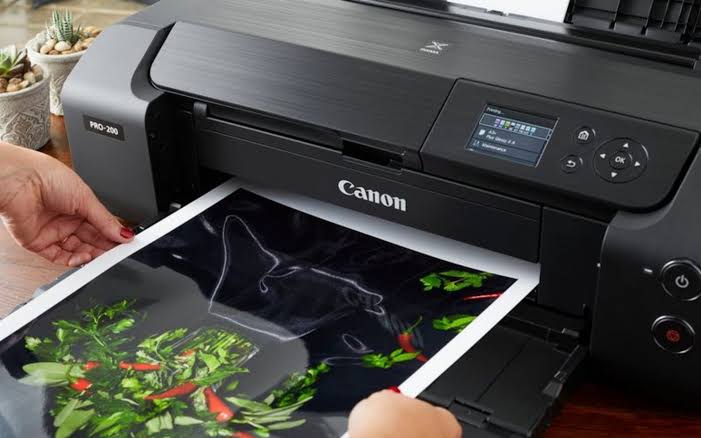
When your Canon printer stops printing black ink, your documents may come out faded, incomplete, or completely blank, even when the printer has enough ink. This problem can affect text documents, forms, and images that need clear black details.
A Canon printer may not print black because of a clogged printhead, low ink levels, an improperly installed cartridge, incorrect print settings, or a damaged ink cartridge. Fortunately, you can try several troubleshooting steps before considering a repair.
Check the Black Ink Level
Start by checking the black ink level in your Canon printer. If the cartridge is empty or the ink tank is low, the printer may not be able to print black text correctly.
Open the printer’s control panel or Canon printer software to check the ink status. If the black ink is low, replace the cartridge or refill the ink tank according to your printer’s instructions.
Even if the printer shows that ink is available, the ink may not be flowing properly. Continue with the following steps if replacing or checking the ink does not solve the problem.
Check the Black Ink Cartridge
An incorrectly installed or damaged cartridge can prevent your Canon printer from printing black.
Turn off the printer if required by the model’s instructions, then check the black ink cartridge. Make sure it is seated correctly and that any protective tape has been removed from a newly installed cartridge.
If you recently replaced the cartridge, confirm that it is compatible with your Canon printer model. An incompatible or defective cartridge may cause printing problems even when it appears full.
Reinstall the cartridge carefully and try printing a test page.
Run a Nozzle Check
A clogged printhead nozzle is a common reason a Canon printer may stop printing black ink. Dried ink can block the nozzles, especially if the printer has not been used for a long time.
Canon printers usually provide a nozzle-check option through the printer’s maintenance menu or software.
Print a nozzle-check pattern and examine the black sections. If the black lines are missing, broken, or incomplete, the printhead may need cleaning.
Follow the instructions for your specific Canon model to run the nozzle check. If the pattern looks normal, the problem may be related to the document, settings, or software instead.
Clean the Canon Printhead
If the nozzle check shows missing black lines, try the built-in printhead cleaning function.
Open the Canon printer software or use the printer’s control panel to find the maintenance options. Select the cleaning function and follow the on-screen instructions.
After cleaning, print another nozzle-check pattern to see whether the black ink is flowing correctly.
If the problem continues, your printer may offer a deeper cleaning option. Use it only when recommended by the printer instructions, because cleaning cycles consume ink. Avoid repeatedly running deep cleaning without checking the results.
Check the Print Settings
Sometimes, the printer has ink available but the document settings prevent black text from printing as expected.
Open the document’s print settings and confirm that the correct Canon printer is selected. Check the color options, paper type, and print quality settings.
If your printer offers a grayscale or black-and-white option, try selecting it for a test print. The available settings depend on your Canon model and the type of document you are printing.
You can also print a test page from the printer settings. If the test page prints black correctly but a particular document does not, check the document or application settings.
Check Whether the Printer Uses Black or Photo Black Ink
Some Canon printer models use separate black inks for different types of printing. For example, a printer may use pigment black for ordinary text and dye-based black for photographs.
If black text does not print but photographs look normal, or the opposite happens, the issue may involve one particular ink supply or nozzle group.
Check your printer’s manual to understand its ink system. Verify the relevant ink level and run the appropriate nozzle check before replacing any cartridge.
Restart Your Canon Printer
A temporary printer error can sometimes interfere with printing.
Turn off the Canon printer and wait briefly before turning it back on. Restart your computer if you are printing from one, then send a new print job.
If the printer is connected by USB, check that the cable is firmly connected. For wireless printing, make sure the printer and computer are connected to the appropriate network.
Restarting will not clear a physically clogged nozzle, but it can resolve temporary communication or software problems.
Update the Canon Printer Driver
An outdated or damaged printer driver may cause unexpected printing results.
Visit the official Canon website and find the driver for your exact printer model and operating system. Install the appropriate update and restart your computer if required.
If the printer still does not print black, check whether the problem occurs with different applications and documents. This can help determine whether the issue is related to the driver or the printer itself.
Avoid installing drivers designed for a different Canon model.
FAQs
Why is my Canon printer not printing black even though the ink is full?
The printhead nozzles may be clogged, the cartridge may be installed incorrectly, or the ink may not be flowing properly. Run a nozzle check and follow the recommended cleaning procedure.
Can a clogged printhead stop black ink from printing?
Yes. Dried ink can block the black ink nozzles and prevent ink from reaching the paper. Use the printer’s built-in nozzle-check and cleaning functions.
Why does my Canon printer print color but not black?
The black ink cartridge or its printhead nozzles may have a problem. Check the black ink level, confirm the cartridge is installed correctly, and run a nozzle check.
Should I replace the black ink cartridge?
Replace it if it is empty, damaged, or incompatible with your printer. If ink remains, check the cartridge installation and printhead condition before buying a replacement.
How do I test black ink on my Canon printer?
Use the printer’s maintenance menu or software to print a nozzle-check pattern. Review the black sections for missing or broken lines and follow the recommended maintenance steps if needed.
