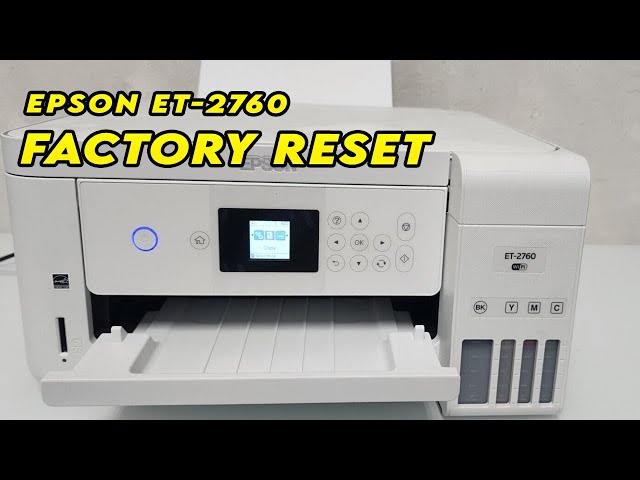
Is your Epson printer experiencing connection problems, incorrect settings, or other issues that you cannot fix with basic troubleshooting? Resetting your Epson printer to factory settings may help resolve these problems by restoring its original settings.
A factory reset can be useful when you want to reconnect your printer to Wi-Fi, remove unwanted configuration changes, or prepare the device for a fresh setup. However, the reset process varies depending on your Epson printer model.
In this guide, you will learn how to reset an Epson printer to factory settings, reset only its network settings, and reconnect it after the reset.
Why Should You Reset Your Epson Printer?
There are several reasons to restore your Epson printer’s default settings.
- Your printer is not connected to Wi-Fi.
- You recently changed your router or wireless password.
- Your printer has incorrect configuration settings.
- You are experiencing recurring setup problems.
- You want to remove saved settings before giving away the printer.
- Basic troubleshooting has not resolved the issue.
Before performing a factory reset, decide whether you need to reset all settings or only the network configuration. A complete reset may erase saved information and settings that you want to keep.
How to Reset an Epson Printer to Factory Settings
Many Epson printers with a display panel include a built-in option to restore default settings. Follow these steps if your model offers this feature.
- Turn on your Epson printer.
- Press the Home button to open the main menu.
- Select Settings or Setup.
- Find and select Restore Default Settings.
- Choose the reset option you need.
- Confirm your selection when prompted.
- Wait for the printer to complete the reset.
Depending on your model, you may see options such as Network Settings, Copy Settings, Scan Settings, Fax Settings, or Clear All Data and Settings.
If you want to restore all available settings, choose the appropriate full-reset option. Read the confirmation message carefully before proceeding because this action may erase stored information.
How to Reset Epson Printer Network Settings
If your Epson printer is not connecting to Wi-Fi, you may not need a complete factory reset. Resetting the network settings can be enough to remove the old wireless configuration.
Follow these steps on compatible models:
Turn on the printer and open its Home menu.
Select Settings or Setup.
Open Restore Default Settings.
Select Network Settings or Reset Network Settings.
Confirm the reset.
Wait for the printer to finish.
This process removes saved network information, including the wireless configuration. You will need to connect the printer to your Wi-Fi network again.
The menu names and available options can vary between Epson EcoTank, WorkForce, Expression, and other models. Check your model’s user guide if the instructions do not match your printer.
How to Reset an Epson Printer Without a Screen
Some Epson printers do not have a display panel. Their reset procedures may use physical buttons, and the correct button combination depends on the model.
For these printers, consult the official user guide for your exact model before attempting a reset. Avoid using random button combinations because they may perform a different function or fail to reset the settings you want to change.
If your main problem is Wi-Fi connectivity, check whether your model has a dedicated network status button or a wireless setup procedure. Follow the instructions provided specifically for your printer.
What to Do After Resetting Your Epson Printer
Once the reset is complete, you may need to configure your printer again.
Reconnect the Printer to Wi-Fi
Open the wireless setup menu, select your Wi-Fi network, and enter the correct password. Make sure the printer is within range of your router.
Reinstall the Printer on Your Computer
If your computer no longer recognizes the printer, open your system’s printer settings and add the device again. You may need to reinstall the appropriate Epson printer software or driver.
Check the Printer Settings
Review any settings that were changed by the reset. Depending on the reset option, you may need to configure printing preferences, scanning settings, or other features again.
Print a Test Page
After completing the setup, print a test page to check whether the printer is working correctly. If the problem continues, troubleshoot the specific error instead of repeatedly resetting the device.
Common Problems After a Factory Reset
Sometimes, an Epson printer may still experience problems after its settings are restored.
If it cannot connect to Wi-Fi, check the password, router compatibility, and wireless signal. If your computer cannot find the printer, reinstall the printer software and confirm that both devices are connected to the correct network.
If the printer displays an error message or refuses to complete the reset, consult the user guide for your exact model. A factory reset cannot repair every hardware issue, ink problem, or mechanical fault.
FAQs
Will resetting my Epson printer delete everything?
It depends on the reset option. A network reset removes saved network settings, while a full reset may erase additional configuration settings and stored information.
How do I reset my Epson printer’s Wi-Fi?
On compatible models, open Settings or Setup, select Restore Default Settings, and choose Network Settings. Then reconnect the printer to your wireless network.
Do I need to reinstall my Epson printer after a factory reset?
You may need to reconnect the printer to Wi-Fi and add it to your computer again. A complete reset does not always require reinstalling the software, but network changes can interrupt existing printer connections.
Why can’t I find the factory reset option on my Epson printer?
The available options depend on your printer model. Some devices use a display menu, while others require a model-specific button procedure. Check the official user guide for instructions.
Conclusion
Resetting an Epson printer to factory settings can help resolve certain configuration and connectivity problems. If you only have a Wi-Fi issue, try resetting the network settings first instead of erasing all saved settings.
Always follow the procedure for your exact Epson model, reconnect the printer after resetting it, and print a test page to confirm that everything works correctly.
