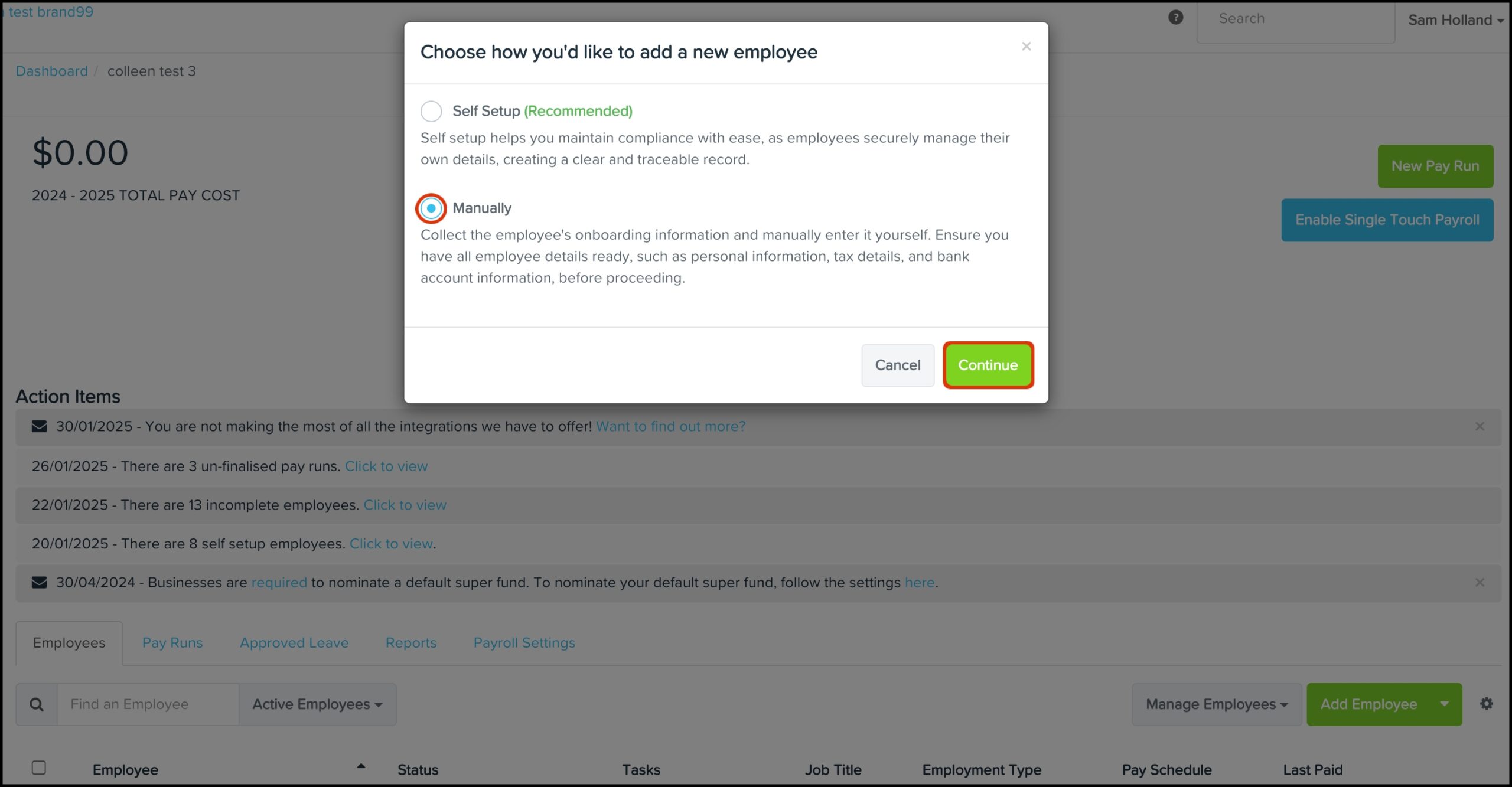
QuickBooks Online Payroll includes several features that make employee management easier. One of these features is employee self-setup, which allows employees to enter or update their own personal information, tax details, payment preferences, and contact information. While this feature can save time, it may not be suitable for every business.
Some business owners prefer to manage employee records themselves to ensure consistency and accuracy. Others may want to limit changes to employee information for security or administrative reasons. If you decide that employee self-setup is not the right option for your business, you can disable the feature and manage employee details directly from your QuickBooks Online account.
Why Turn Off Employee Self-Setup?
Employee self-setup is designed to simplify onboarding, but every business has different payroll requirements.
Some employers prefer to review and enter employee information themselves before payroll is processed.
Turning off employee self-setup gives administrators greater control over payroll records and employee data.
It can also help reduce errors caused by incomplete or incorrect information entered by employees.
Sign In to QuickBooks Online
- Begin by signing in to your QuickBooks Online account using an administrator account.
- Only users with the appropriate permissions can change payroll and employee settings.
- If you are not signed in as an administrator, some options may not be available.
Open Payroll Settings
- After signing in, go to the payroll section of your QuickBooks Online account.
- Open the payroll settings where employee preferences and payroll options are managed.
- Review the available settings carefully before making changes.
Locate the Employee Self-Setup Option
- Within the payroll settings, look for the employee onboarding or employee self-setup option.
- If the feature is enabled, you should see an option that allows employees to complete their own setup.
- Select the setting to modify it.
Turn Off Employee Self-Setup
- Disable the employee self-setup option.
- Save the changes before leaving the settings page.
- Once the setting has been updated, employees will no longer be able to complete their own setup through the self-service process.
- Instead, administrators will manage employee information directly.
Review Employee Permissions
- Check employee access permissions after disabling self-setup.
- Verify that employees only have the level of access appropriate for their roles.
- Proper permission settings help protect payroll information.
Update Employee Information
- After turning off employee self-setup, review existing employee records.
- Ensure that personal details, payroll information, and payment preferences are accurate.
- Keeping employee records updated helps prevent payroll errors.
Notify Your Employees
- If your employees previously used self-setup, let them know about the change.
- Explain that payroll information will now be managed by the business administrator.
- Clear communication helps avoid confusion during future payroll updates.
Check for QuickBooks Updates
- Keeping QuickBooks Online updated helps ensure that payroll features work correctly.
- Review your payroll settings regularly to confirm they match your business needs.
- Updated software also improves security and overall performance.
Test the New Settings
- After making the changes, review the employee management process.
- Confirm that employees can no longer access the self-setup feature.
- Verify that administrators can update employee information without issues.
- Testing the settings helps ensure everything is working correctly.
Common Reasons Businesses Disable Employee Self-Setup
Many businesses prefer to manage employee information directly.
Common reasons include:
- Better control over payroll records.
- Improved accuracy of employee information.
- Stronger security for payroll data.
- Consistent employee onboarding.
- Reduced administrative errors.
- Simplified payroll management.
- Better compliance with company policies.
- Easier record verification.
- Centralized employee management.
- Improved payroll accuracy.
- Greater administrative oversight.
- More consistent employee documentation.
Choosing the right payroll settings depends on the needs of your business.
Tips for Managing Employee Information
Good payroll management starts with accurate records.
- Keep employee information updated.
- Review payroll settings regularly.
- Limit account permissions when appropriate.
- Verify employee details before processing payroll.
- Maintain accurate employment records.
- Use secure account credentials.
- Monitor payroll activity regularly.
These simple practices help improve payroll management and reduce errors.
FAQs
What is employee self-setup in QuickBooks Online?
Employee self-setup allows employees to enter and update certain personal and payroll information during the onboarding process.
Why would I turn off employee self-setup?
Many businesses disable the feature to maintain better control over employee records, improve payroll accuracy, and strengthen data security.
Who can turn off employee self-setup?
Generally, users with administrator or payroll management permissions can change payroll settings.
Will employees lose access to their payroll information?
Turning off employee self-setup only prevents employees from completing or updating their own setup. Other available employee features may remain unchanged depending on your payroll settings.
Why can’t I find the employee self-setup option?
The feature may depend on your QuickBooks Online Payroll subscription, user permissions, or current payroll configuration.
When should I get QuickBooks help?
Additional QuickBooks help may be useful if payroll settings cannot be changed or if employee management features are not working correctly after completing the recommended troubleshooting steps.
Conclusion
Employee self-setup in QuickBooks Online is a helpful feature for many businesses, but it is not the best choice for every organization. If you prefer to manage employee records yourself, turning off this feature gives you greater control over payroll information and employee data.
By signing in as an administrator, reviewing payroll settings, disabling employee self-setup, checking permissions, and keeping employee records updated, you can maintain a more controlled payroll process.
